Isramedia team · 22 October 2026 · General guide
Stability before speed figures
 When playback stops, first identify what fails and under which conditions, rather than starting with your internet plan’s advertised speed. One video may fail at its source; several affected apps may suggest a broader issue. Distinguish slow loading, repeated buffering, blurred picture and sign-in errors. Each needs different initial checks; “it is stuck” alone is insufficient for diagnosis.
Test on the actual viewing device and at the time problems occur. A phone measurement beside the router may not represent a TV in another room. Repeat with household downloads stopped and compare normal use. One speed result does not establish blame. Network requirements vary by service, quality and format; request documented requirements. A high test number cannot guarantee every source plays continuously.
When should you try Ethernet?
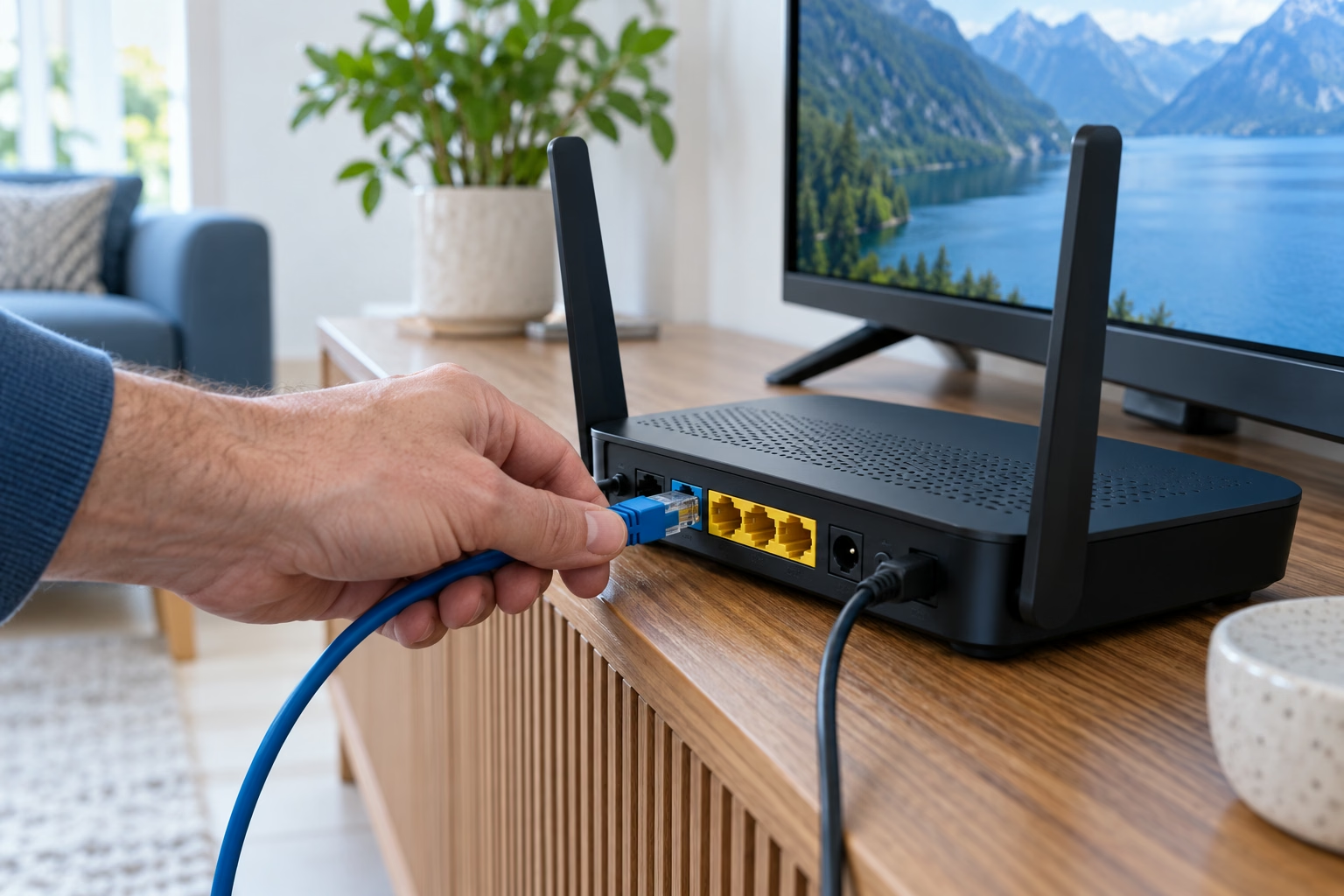
Ethernet lets you compare playback without dependence on wireless reception at that location. Where TV and router support it, use a working cable, confirm the device detects the connection and retry the same failed content. Do not also change player, quality or password. Confirm which connection is actually used if Wi-Fi remains enabled.
A cable cannot solve every fault: ports, loose connections, intermediate equipment or the content source may still cause problems. Start with visual checks and another existing cable where possible, not an unsupported equipment purchase. Consistent improvement in the same scenario suggests investigating Wi-Fi further. If nothing changes, retain the result and compare apps and content. One good result does not establish a permanent repair.
When using Wi-Fi
Check the actual viewing location. Router distance, walls, older devices and other users can affect reception and available speed. Try a more open router or device position and compare the same scenario. Where supported, test the router’s available networks separately. No single band or network guarantees the best result in every room.
Temporarily stop large downloads and backups elsewhere, noting changes. For mesh systems, follow manufacturer guidance on placement and links between units; a unit also needs a good connection. Before a factory reset, check normal restart and built-in diagnostics. Changing the Wi-Fi password disconnects other devices and is not an initial diagnostic step. If the difficulty is player installation rather than reception, return to the Smart TV guide to separate the two issues.
Isolate the source of the problem
Record date, time, device, player, connection, content and result. Compare another item in the same service, then another app. Where possible, compare another device on the same network. Another app working narrows the investigation without proving suitability for every source. One failed item is not sufficient reason to replace a router.
If several devices and services struggle, give your internet provider the test results. If only one service fails, send its support the item and error. Remove passwords and access URLs from screenshots. Before changing subscription, use the plan-selection checklist to ensure the change addresses your actual need.
Is high speed enough? No: check stability and the scope of the issue as well.
Does Ethernet always fix playback? It is a comparison tool, not a repair guarantee.
Source: Google — troubleshooting slow Wi-Fi. Some product recommendations concern Google’s equipment; the comparisons here are a general diagnostic framework.