Setup guides for your device.
Isramedia setup guides — choose your device for an initial setup guide.
01 / 07
Televizo Player
Televizo works with a playlist or Xtream Codes details supplied separately from the player. Install the app on your Android device, create a playlist, choose the matching connection method and save your details. The screenshot below shows the real Create playlist screen; menus may change with app updates.
- Install Televizo from Google Play on the Android device.
- Open Create playlist, then New Xtream Codes playlist.
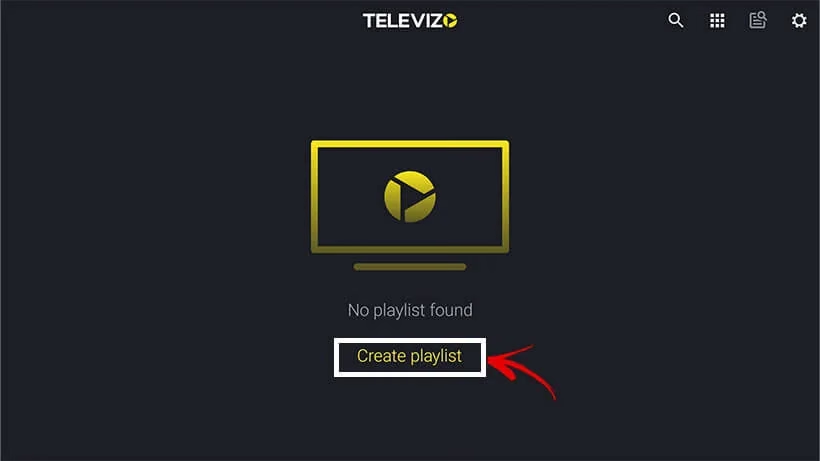
Televizo: Create playlist. Real interface reference · Appearance varies by version. Source: IPTV Setup - Enter a playlist name, your subscription username, password and server address exactly as supplied.
- Save using the checkmark and allow the playlist to load.
- Open a channel to test playback. If the guide is empty, refresh the playlist and check whether an EPG is supplied.
02 / 07
Amazon Firestick 4K
Set up your Fire TV and check the Amazon Appstore first. If the required player is unavailable, confirm your exact model and operating system before using an official developer download. The two real screenshots show the Search screen and Downloader listing; Downloader is an installer tool, not your television subscription.
- Connect Fire TV to power, the television and your network. Complete the Amazon setup.
- Open Find → Search. Search for a compatible player and install it from the Appstore when available.
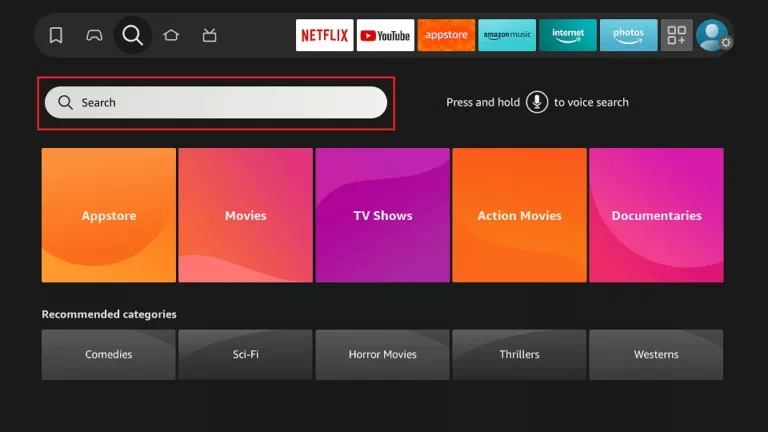
Fire TV: Find → Search. Real interface reference · Appearance varies by version. Source: FireStickTricks - If the player is unavailable, confirm your model and operating system with support. On a compatible Fire OS device, search for and install Downloader by AFTVnews.
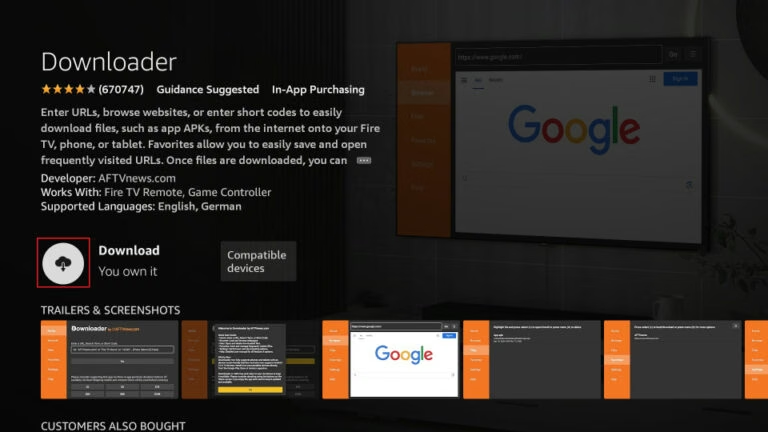
Amazon Appstore: Download Downloader. Real interface reference · Appearance varies by version. Source: FireStickTricks - Only on devices that support external installation: open Settings → My Fire TV → Developer Options → Install unknown apps and enable Downloader. If Developer Options is missing, open About and select the device name seven times.
- Open Downloader and enter only a download address verified on the player developer’s website. Install and open the player; avoid unverified short codes.
- Choose Xtream Codes or M3U to match your activation message. Enter the details, save and test a channel. You can turn external-install permission off again afterwards.
If your model does not show these installation options, stop and send support the full model number. Not every Fire TV operating system supports Android APK files.
03 / 07
Samsung & LG Smart TV
On Samsung and LG televisions, start with the app store available on your exact model. IBO Player commonly uses a device identifier and key to manage playlists through a companion website. Follow the website displayed by your installed app, because similarly named players can use different portals and activation systems.
- Open Samsung Apps or LG Content Store. App availability depends on the model and region.
- Install the exact IBO Player version recommended for your television.
- Open the app and note the Device ID / MAC address and Device Key. Keep the key private.
- On your phone or computer, open the developer portal shown inside that exact app. Enter the device details and add the supplied playlist.
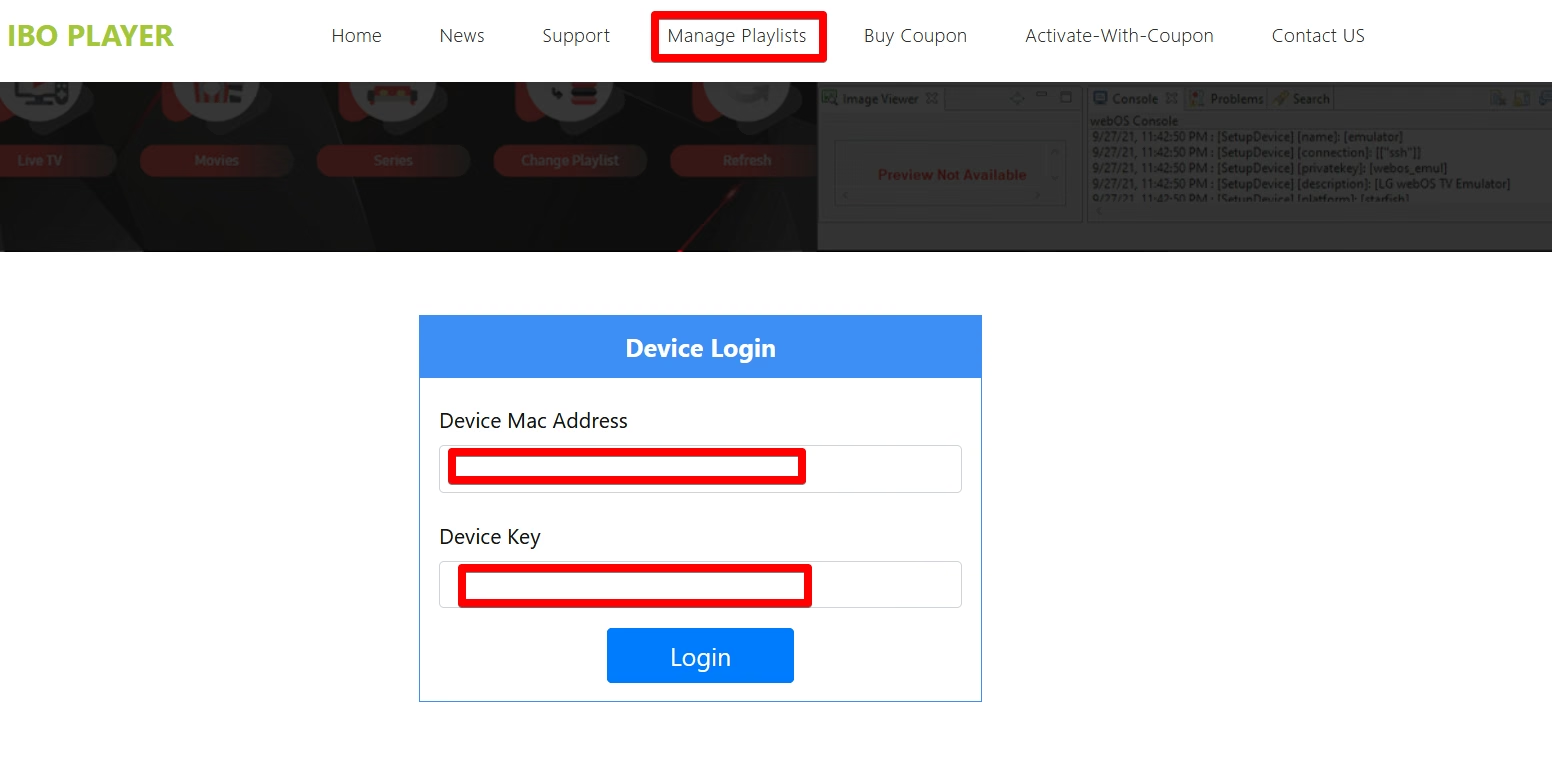
IBO Player: empty Device Login form. Real interface reference · Appearance varies by version. Source: IPTV Support Center - Choose Add playlist, give it a name and paste the complete M3U link. Add an XMLTV EPG only if a separate URL was supplied, then select Save.
- Save, restart the TV app and load the playlist. An app activation fee, if required, is separate from the television subscription.
04 / 07
Android TV & Google TV
Android TV and Google TV can use compatible television players such as TiviMate or Televizo. Install through Google Play where available, add a playlist and use the connection method that matches your activation message. The screenshot shows TiviMate on a television interface, rather than a generated illustration of the setup.
- Open Google Play on your TV or streaming box.
- Search for Televizo or TiviMate and verify the app publisher before installing.
- Launch the player and select Add playlist / Create playlist.
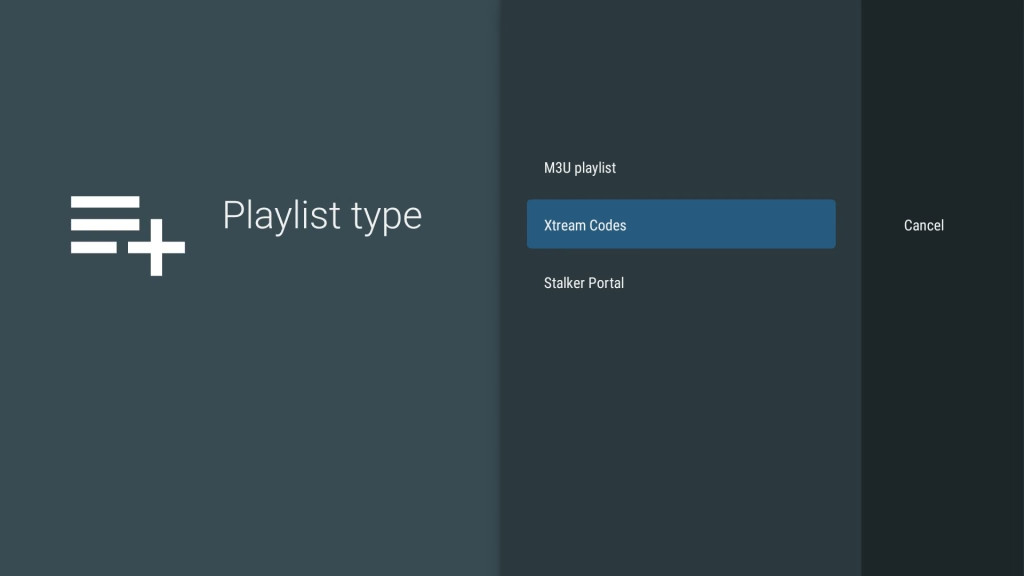
TiviMate on Android TV: choose Xtream Codes. Real interface reference · Appearance varies by version. Source: TiviMate Nederland - Choose Xtream Codes and enter the supplied server address, username and password; use M3U instead if you received a playlist link.
- Save and test a channel. For smoother playback, try Ethernet or a strong Wi-Fi connection and update the app.
TiviMate: full player walkthrough · Televizo: full player walkthrough
05 / 07
TiviMate IPTV Player
TiviMate is designed for Android TV devices. Add your playlist, select Xtream Codes when your details include a server, username and password, then process the list. Its developer supplies the player separately from any content. The two screenshots show the playlist type selector and the empty connection fields.
- Install TiviMate on a supported Android TV device from Google Play.
- On first launch choose Add playlist. For an existing installation open Settings → Playlists → Add playlist.
- Select Xtream Codes as the playlist type.
TiviMate: choose Xtream Codes. Real interface reference · Appearance varies by version. Source: TiviMate Nederland - Enter Server address, Username and Password. Include VOD only if your subscription includes it. Select Next.
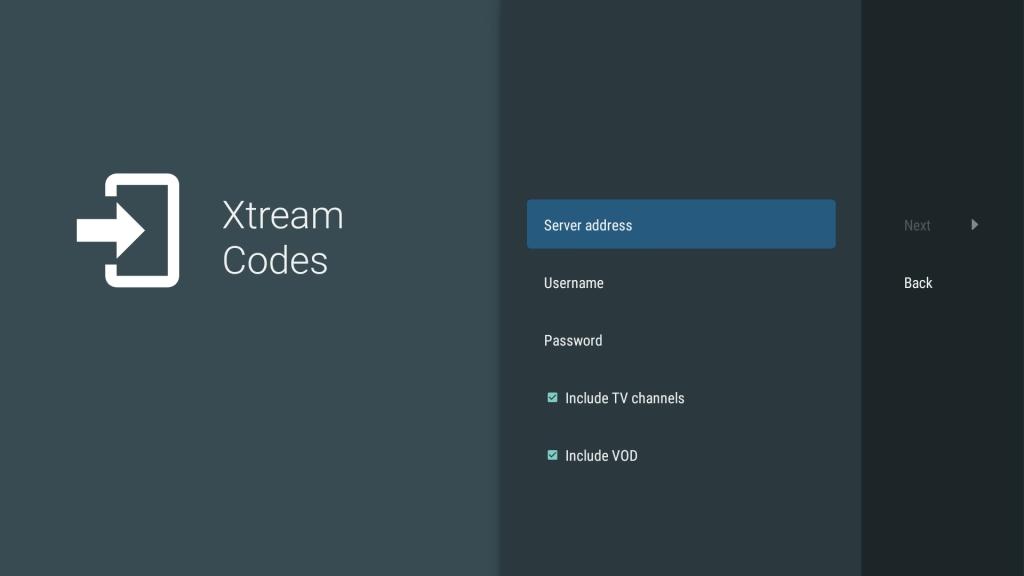
TiviMate: empty server, username and password fields. Real interface reference · Appearance varies by version. Source: TiviMate Nederland - Wait for processing, give the playlist a name and finish. If EPG times are wrong, check the device time zone before applying an offset.
06 / 07
IPTV Smarters Pro
IPTV Smarters Pro accepts connection details from your provider; installing the player alone does not add channels. Choose Xtream Codes when you have three login values, or the playlist option for an M3U link. Check the exact developer and platform version, as Smarters Pro and Smarters Player Lite are different builds.
- Find the compatible Smarters app through the developer website or your device app store. Versions vary between platforms.
- Open the app and choose Login with Xtream Codes API when available.
- Enter Any Name as a label, then the supplied Username, Password and Server URL.
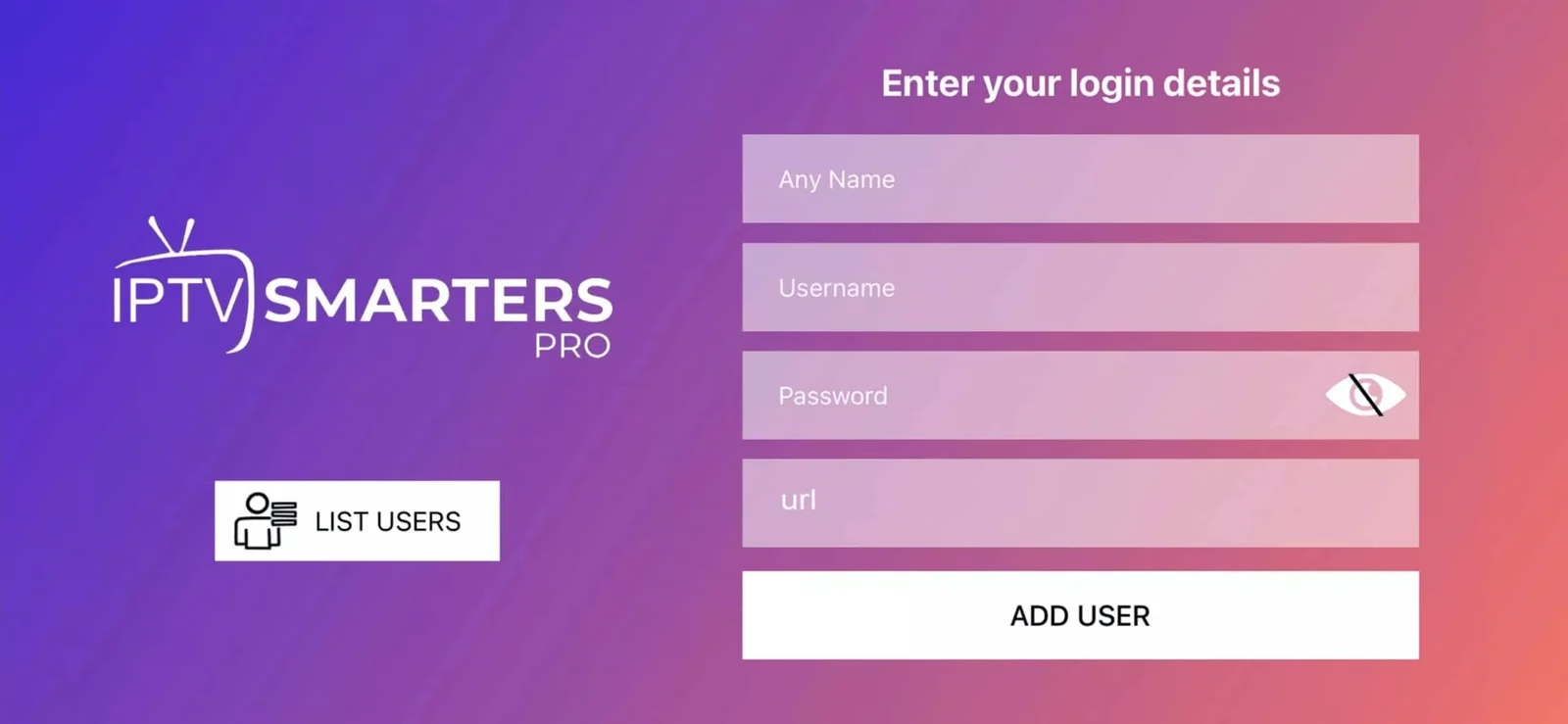
IPTV Smarters Pro: empty Xtream Codes login form. Real interface reference · Appearance varies by version. Source: IPTVZ - Select Add User and wait for the channel list to load.
- Test Live TV, then Movies or Series if included. If login fails, check extra spaces, letter case and account status before reinstalling.
07 / 07
VLC — Windows & macOS
VLC is an additional option for playing a supplied M3U or network stream on a computer. The Windows interface uses Media → Open Network Stream; macOS uses File → Open Network. Paste the full link from your activation message. The real screenshot below comes from VideoLAN documentation and shows the Windows Network tab.
- Install VLC from the official VideoLAN source for your operating system.
- On Windows choose Media → Open Network Stream. On macOS choose File → Open Network.
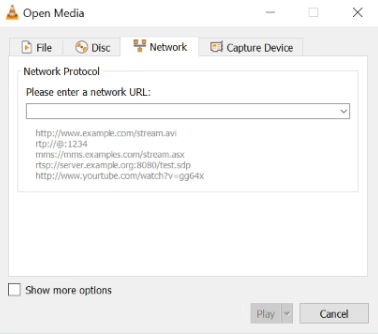
VLC on Windows: Open Media → Network. Real interface reference · Appearance varies by version. Source: VideoLAN documentation · CC BY-SA 4.0 - Paste the complete supplied M3U link without extra spaces.
- Choose Play. If a channel list loads, open Playlist and select a channel.
- If playback fails, check the link, internet connection and account status. VLC does not use a three-field Xtream Codes login form.