Magazine / Choosing a TV service / Hebrew subtitles in IPTV
Hebrew subtitles in IPTV: what should you check before choosing a service?
By the Isramedia editorial team · Published 23 October 2026 · Consumer guide
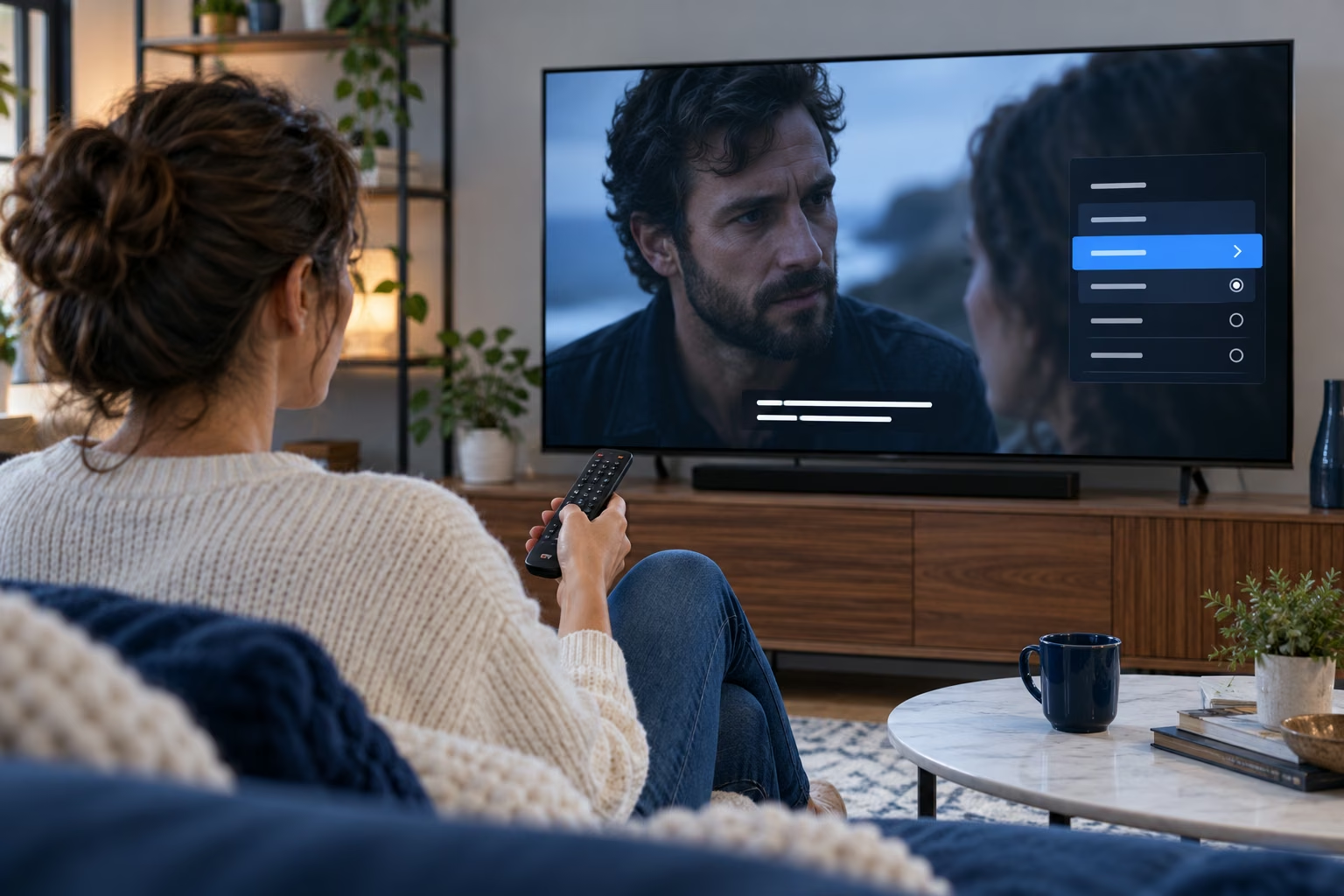
A promise of Hebrew subtitles may concern a title, library, app or device. Hebrew menus do not establish that your wanted series is translated. Check the whole viewing chain: content, language options, player and home screen. This guide provides a testing and documentation process without promising subtitles for every title or unconfirmed Isramedia support. For the wider service decision, use comparing home viewing options. Here we explain what to ask, what to test on screen and how to distinguish missing translation from display problems.
What does Hebrew subtitle support mean?
Hebrew subtitle support requires an appropriate track for your content that works usefully on your chosen device and player. Menu language and service names do not establish this. Check title, season and episode; distinguish burned-in text from selectable subtitles; and do not generalise one test to the whole library or every screen.
Burned-in versus selectable subtitles
Burned-in subtitles are part of the video image. Selectable subtitles use a separate track where the service and player support it. This affects switching them off, changing language, appearance and timing. A subtitle icon does not establish Hebrew availability. Inspect the wanted title’s options. If two text layers appear, identify whether one is burned in and another selected: disabling the player track cannot remove text embedded in the source picture.
Ask not only whether Hebrew exists but in which content and how to select it. For live viewing, specify channel and programme; for films, include title and year. Hebrew-language content does not automatically mean foreign-language content is translated. The guide sets no universal translation quota; it helps verify your specific title, language, device and plan.
Interface language is not subtitle language
Hebrew controls may help navigation, but check the content’s subtitle list separately. A translated film name, synopsis or local category does not establish a Hebrew playback track. Keep separate requirements for Hebrew operation and Hebrew subtitles in essential titles, especially when the remote operator and viewer differ. The decisive check is inside the player after opening the wanted content, not a screenshot of the homepage.
How do you check subtitles in your chosen content?
Play the exact title, select Hebrew and watch dialogue on the intended device. Repeat for other essential seasons or episodes. Record date, model and app rather than relying on a general promise or an image from another item in the library.
Check the exact title and version
Prepare a short list of content you will actually watch, covering different types where relevant. Do not accept only an easy demonstration unrelated to your needs. Specify the season and episode. Mark unconfirmed content as such: silence does not imply translation, and one successful film does not establish matching options for every foreign-language title.
Test several speakers, punctuation and a relatively long line. Try pause, resume and seeking where supported, using normal viewing rather than artificial stress tests. If text appears only sometimes, ask whether this is foreign-dialogue translation, a complete track or an issue. Netflix explains that language availability may depend on title, location, preferences and device. This is documented behaviour of one service, not evidence about every IPTV service.
Repeat the check on your home screen
Use the TV or streamer you will actually watch, not a representative’s phone screenshot. Record the model and app version where available. Text too small at your normal viewing distance is a suitability problem even when characters display correctly. Check size or appearance options only where supported. For Netflix-specific information, see why a subtitle language may be unavailable. Do not change region or account settings on the assumption that this will solve an unidentified translation issue.
How do subtitle types differ?
Subtitle type determines what users can change and what depends on the source. Burned-in text differs from selectable tracks, while accessibility captions may include more than speech. Compare language control, appearance and readability on the specific content and player. An option in one app need not exist in another, and subtitle types do not serve every need identically.
| Type or situation | What to check | Limit to clarify |
|---|---|---|
| Text burned into the picture | Readability and language | Not a separate track you can disable |
| Selectable subtitles | Hebrew in the available languages | Depends on content and player |
| Accessibility captions | Sound and speaker information | Availability for the title and language |
| Partial translation | Which scenes display text | Not necessarily a complete translation |
| Authorised external subtitle file | Version compatibility and player support | Do not assume every player supports it |
Size, position and readability
Read subtitles from your normal seating position. Check clipping, collisions with other information and contrast against bright backgrounds. Size, colour and background options depend on the player. Inspect supported settings before promising customisation to a viewer. Preferences differ with eyesight, lighting and distance; each person should test their own conditions. Readability is part of suitability, not a final decorative adjustment.
On a shared screen, change content and users to see whether language preferences are retained or need reselection. Either may be acceptable if the required action is understood. Check the appropriate profile where present. Do not base universal instructions on a button’s position in another version. Describe the goal, such as opening audio and subtitle settings, noting that app layouts can differ.
Accessibility is more than translation
Someone needing speaker identification or sound descriptions should check accessibility captions, not just translated dialogue. Apple’s documentation discusses CC and SDH where available, but this does not establish Hebrew captions for every film. Ask what information the viewer needs and test a suitable scene. Language support and accessibility are related but separate; make essential accessibility a confirmed requirement before payment.
What if subtitles are out of sync?
For out-of-sync subtitles, establish whether the offset is constant, changing or limited to one title. Check the active track and a known scene, then compare another title before changing settings. Use timing correction only if documented by your player. It is not available everywhere and cannot necessarily fix subtitles for a different video version.
Constant versus changing offset
Record whether text precedes or follows dialogue and whether the difference stays similar. If measuring, explain the method rather than presenting an estimate as a professional diagnosis. If the issue begins after seeking, return to normal playback and retest. Tell support if only one episode is affected. Start with simple, reversible player controls rather than resetting an entire device for one item’s problem.
Check for duplicate text layers or an unintended language track. An apparently incorrect translation may be the wrong selected text. Matching names do not establish that an authorised external file matches the video version. Do not download unknown files for a quick fix. Ask whether the provider supplies the appropriate track and the player supports the intended method. Random add-ons or file changes are not a normal prerequisite for selecting a home TV service.
Document before contacting support
Send title, season, episode, timestamp, symptoms, device and app version where available. Screenshots can help after access details and personal information are removed. Do not send a password to demonstrate subtitles. Ask whether the issue concerns content, settings or a known compatibility limit. An unanswered requirement remains unresolved. Do not buy another player without confirming the actual title and subtitle track on it.
When is Hebrew support insufficient?
Hebrew support is insufficient if it misses essential content, readability or the home device. Success on a phone but not a TV requires separate investigation. One translated season does not confirm all seasons. Base the decision on your viewing scenario, not Hebrew appearing somewhere in the service or marketing material.
Live content versus on-demand libraries
A film test does not establish live-channel subtitle behaviour. Ask separately about the content type you use. For news or live programmes, test a representative broadcast; for series, check relevant episodes. This guide does not promise real-time or automatic translation or a Hebrew track on a particular channel. Confirm each required feature separately, and do not treat automatic translation as equivalent to a verified track without assessing the viewer’s needs.
Films may also have several versions: the same name need not mean the same file, length or languages. Identify release year and version to avoid comparing different works. An available version that lacks essential language or readability may still fail your need, despite an otherwise good library. The guide to choosing a film and series service extends title checks to seasons, catalogues and cost. Translation remains a precise content requirement rather than a general service label.
Decision rules when Hebrew is essential
- Check essential titles on the intended device before choosing a subscription period.
- If Hebrew appears only in menus, continue to the player’s content language options.
- If subtitles exist but are unreadable, check supported appearance adjustments before approving suitability.
- For a problem limited to one title, record the item and scene rather than judging the whole service faulty.
- Keep unconfirmed requirements marked as such rather than committing to a long plan or new equipment.
What should you ask before purchasing?
Before purchase, ask about essential titles, translation coverage, activation steps, device compatibility and support responsibility. Seek answers specific to the plan, recording the confirmation date and limits. Distinguish demonstrated features from promises awaiting verification. A low price does not make a service suitable when an essential requirement remains unconfirmed.
Questions that produce useful answers
Instead of “is everything Hebrew?”, specify the series, season, TV model and need for Hebrew subtitles. Ask whether the offered plan covers it, how to enable them and who handles differences between devices. Clear limitations are useful; a narrow, testable confirmation is preferable to a broad agreement mixing interface, content, player and device. Retain the plan and date, removing personal details from shared comparisons.
For Apple’s own TV service, consult Apple’s guide to subtitles and languages. It describes Apple’s product rather than identical menus in another player or Hebrew availability in an untested title. Do not transfer one platform’s features to every service. For multilingual households, checking audio and subtitles for several languages helps distinguish each person’s requirements. Focus on actual users rather than assuming every Hebrew speaker wants the same experience.
Keep a short non-sensitive record of the successful setup: app, title, subtitle language and selected menu option. If behaviour changes, it helps formulate a precise support question. A settings screenshot does not prove every future title supports that option. Show shared users how to change language and restore the desired setup. A short instruction verified on the home device is more useful than a long procedure copied from another player; update it when the app or controls change.
The decision boundary
Finish with checked title, selected language, device, readability and unresolved symptoms. This is not laboratory testing or a guarantee for future versions. Recheck after updates before replacing hardware or renewing a long period. If essential Hebrew subtitles cannot be confirmed on your content and device, pause the purchase relying on that requirement until clarified and suitably tested.
Frequently asked questions
Does a Hebrew interface guarantee Hebrew subtitles?
No. Menu and subtitle languages are separate requirements. Check the desired title’s language options on your intended device.
How do burned-in and selectable subtitles differ?
Burned-in text is part of the picture. Selectable subtitles use a separate track where content and player support it. Appearance and disabling options may differ.
What should I check when subtitles are out of sync?
Record title, timestamp and offset direction, then whether it is constant or item-specific. Use only the supported player’s correction controls.
Is a phone test enough for choosing a TV service?
No. Repeat title, language and readability checks on the TV or streamer used at home. Success on one device does not confirm every other device.
Scope: a decision framework based on viewing requirements and linked sources, not a laboratory test, a verified Isramedia catalogue or a guarantee about another provider. Confirm commercial information when you make your choice.